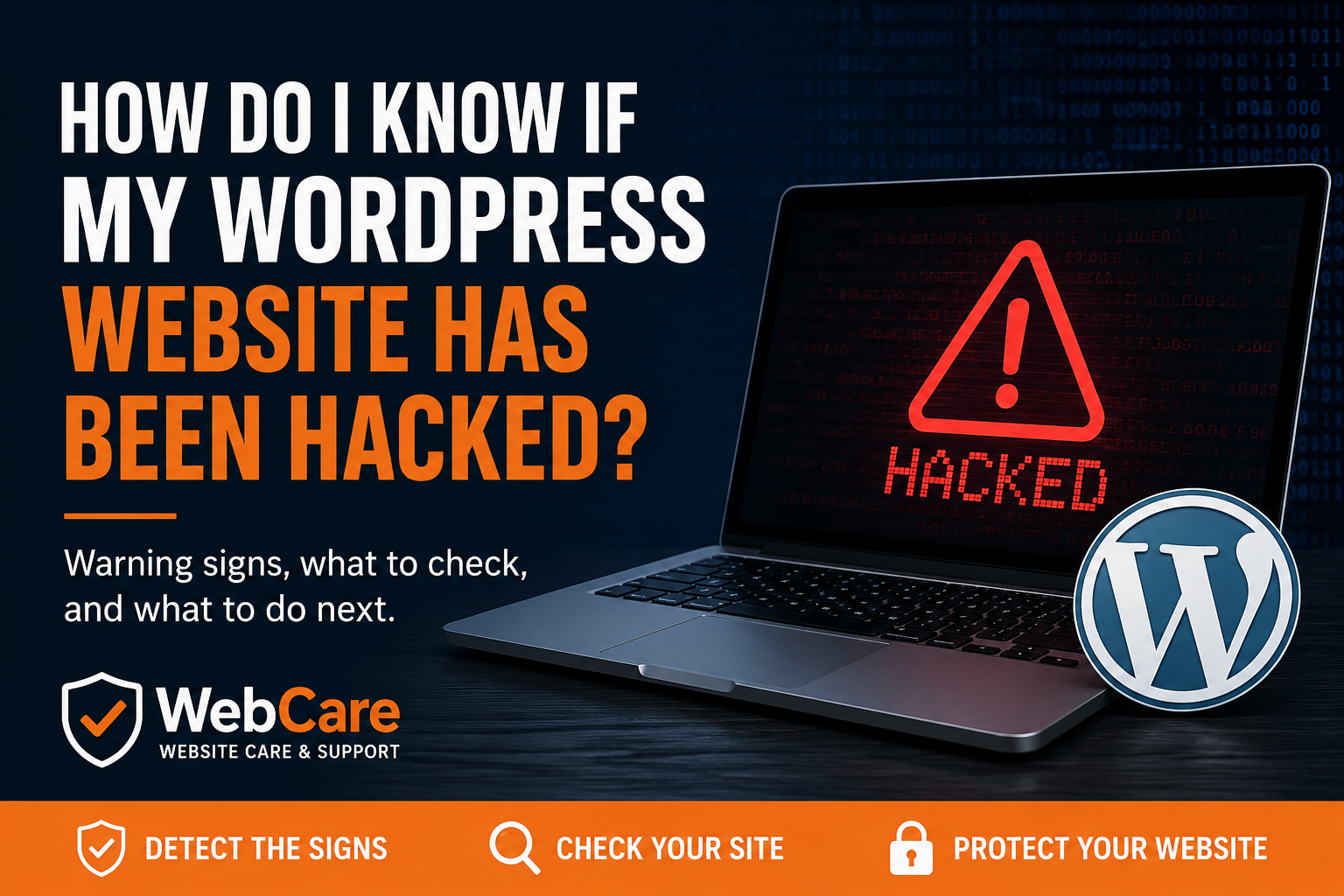
If you’re wondering how to know if WordPress is hacked, there are several warning signs you can look for. Strange redirects, unfamiliar users, unexpected website changes, security warnings, and unusual activity can all indicate that your WordPress site deserves a closer look.
So, how do you know if WordPress is hacked? Some compromises are obvious, but others can remain hidden for quite a while. The best approach is to know the warning signs, investigate anything unusual, and act quickly if you find evidence of a problem.
Common Signs Your WordPress Website May Be Hacked
A hacked WordPress site doesn’t always display a giant warning saying something is wrong. In many cases, the first clue is a small change in how the website behaves.
Warning signs can include:
- Visitors being redirected to websites you don’t recognize
- Pages or posts appearing that you didn’t create
- Unknown WordPress administrator accounts
- Unexpected changes to your homepage or other pages
- Security warnings appearing in browsers or search results
- Unusual spikes or drops in website traffic
- Your website suddenly becoming very slow
- Contact forms or other website features behaving strangely
- Files or plugins appearing that you don’t recognize
One unusual event doesn’t automatically mean your site has been hacked, but unexplained changes should never simply be ignored.
1. Your Website Redirects Visitors Somewhere Else
Unexpected redirects are one of the more noticeable signs of a compromised website. A visitor may click your website in Google and suddenly be sent to a spam, advertising, or other unrelated website.
These redirects can be particularly difficult to spot because they may not happen every time. In some cases, the site may behave normally when you visit it while redirecting other visitors.
2. You Find WordPress Users You Don’t Recognize
Check the Users section of your WordPress dashboard periodically, especially accounts with Administrator privileges.
If you discover an administrator account that you didn’t create and can’t identify, investigate it immediately.
An attacker with administrator access can potentially install plugins, change files, create additional users, and make other significant changes to the website.
3. Google or Your Browser Displays a Security Warning
Sometimes the first indication of a problem comes from outside WordPress.
Search engines, browsers, hosting companies, and security services may identify malicious content or suspicious activity associated with a website.
If you receive a legitimate security warning about your domain, don’t dismiss it simply because the website still appears normal when you visit it.
4. Your Website Suddenly Becomes Slow or Unstable
A slow website doesn’t necessarily mean you’ve been hacked. Performance problems can have many causes, including hosting limitations, poorly configured plugins, large images, or database issues.
However, a sudden unexplained change in performance can be worth investigating, particularly when it appears alongside other suspicious activity.
5. You See Plugins or Files You Don’t Recognize
If unfamiliar plugins suddenly appear in your WordPress dashboard, find out where they came from before assuming they’re harmless.
The same applies to unexpected files or modifications discovered during a security scan.
Be careful about deleting suspicious files without understanding what they are. Removing the wrong WordPress file can break the website without actually fixing the underlying security problem.
6. Your Website Content Has Changed
Some attacks are obvious because the homepage is defaced or replaced. Others are much more subtle.
An attacker may insert spam links, hidden pages, advertisements, or malicious code while leaving most of the website untouched.
Periodically looking through your website—not just the WordPress dashboard—can help you notice changes that shouldn’t be there.
How to Know If WordPress Is Hacked
If you’re trying to determine how to know if WordPress is hacked, don’t rely on just one warning sign. Look at the website as a whole.
Useful checks include:
- Reviewing WordPress administrator accounts
- Checking installed plugins and themes
- Running a reputable security scan
- Reviewing recent website changes
- Checking your hosting account for security notifications
- Looking for unexpected redirects or new pages
- Comparing suspicious files against known clean versions or backups
The official WordPress documentation also provides guidance for situations where a site may have been compromised. See WordPress: FAQ My Site Was Hacked for additional information.
What Should You Do If You Think Your WordPress Site Is Hacked?
If you find convincing evidence that your website has been compromised, avoid making random changes without a plan.
Depending on the situation, recovery may involve:
- Creating or preserving a backup of the current site for investigation.
- Changing WordPress, hosting, database, FTP/SFTP, and other relevant passwords.
- Removing unauthorized administrator accounts.
- Identifying and removing malicious files or code.
- Updating WordPress core, plugins, and themes.
- Replacing compromised files with known clean copies where appropriate.
- Checking the site again after cleanup.
- Investigating how the compromise occurred so the same vulnerability isn’t left open.
If you aren’t comfortable identifying malicious code or restoring WordPress safely, this is a situation where professional help may be worthwhile.
Outdated WordPress Plugins Can Increase Your Risk
Keeping WordPress software current is an important part of reducing unnecessary security exposure. Security vulnerabilities are periodically discovered in WordPress plugins, themes, and other software.
That’s one reason we recommend checking updates regularly. Our guide on how often you should update WordPress explains a practical update schedule and why backups should be part of the process.
Prevention Is Better Than Emergency Cleanup
Security isn’t just something to think about after a website has been compromised.
Regular WordPress maintenance can help reduce risk by keeping software current, maintaining reliable backups, monitoring for vulnerabilities, and catching problems before they become bigger emergencies.
No security system can guarantee that a website will never experience a problem, but consistent maintenance can significantly reduce unnecessary exposure and make recovery much easier if something does happen.
Not Sure About the Condition of Your WordPress Website?
If you’re concerned about your website—or you simply haven’t checked its maintenance and security condition recently—WebCare’s free website audit is a good place to start.
The audit checks your website for several common WordPress maintenance and security concerns and gives you a clearer picture of areas that may deserve attention.
Check My WordPress Website — Free Audit →
There’s no obligation. The goal is simply to help you understand what may need attention and what your next steps should be.

Leave a Reply