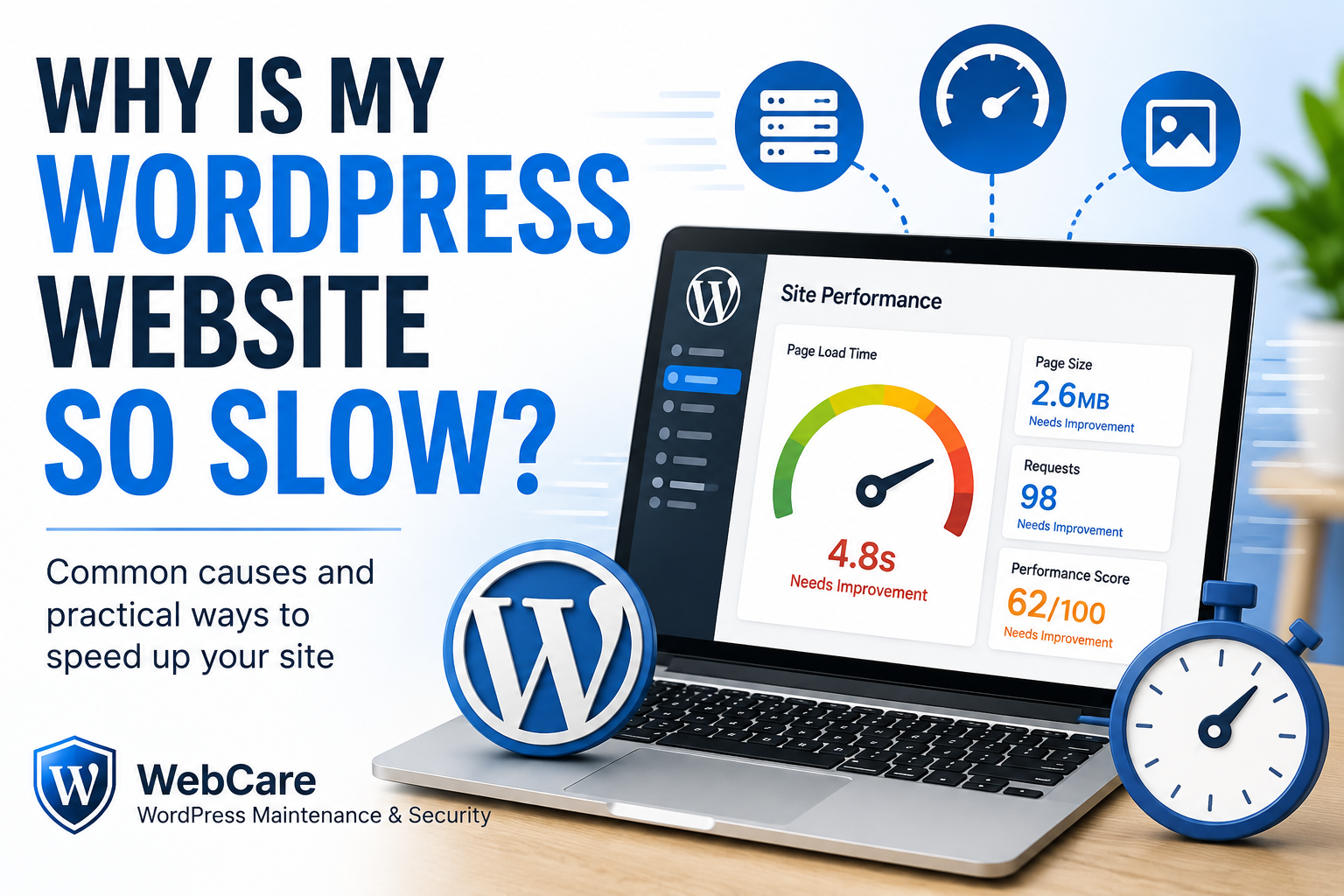
If you’re asking why is my WordPress website so slow, you’re not alone. Slow WordPress websites are common, and the cause isn’t always obvious. Your hosting, images, plugins, theme, database, caching, or even outside services can all affect how quickly a page loads.
The good news is that a slow website usually has an explanation. Instead of installing another performance plugin and hoping for the best, it helps to identify what’s actually slowing the site down and address the underlying problem.
Why Is My WordPress Website So Slow?
There isn’t one universal reason WordPress websites become slow. In many cases, several smaller performance problems combine to create a noticeably slower experience.
Some of the most common causes include:
- Slow or overloaded web hosting
- Large, poorly optimized images
- Too many plugins or resource-heavy plugins
- Poor caching configuration
- An inefficient or bloated theme
- Too many external scripts
- Database clutter
- Outdated WordPress software
- Security or malware problems
Finding the actual cause is important because optimizing images won’t solve a hosting problem, and upgrading hosting won’t necessarily fix a badly configured plugin.
1. Your Web Hosting May Be Too Slow
Your hosting server plays a major role in WordPress performance. Every time someone visits your website, the server has work to do before the finished page reaches that visitor.
Low-resource or overloaded hosting can make even a relatively simple WordPress site feel sluggish.
If the WordPress dashboard is also consistently slow, not just the public website, hosting resources or server-side problems may deserve closer attention.
2. Your Images Are Too Large
Images are one of the most common sources of unnecessary page weight.
A photograph uploaded directly from a modern camera or phone can be several megabytes even though the website may display it at a fraction of its original dimensions.
Image optimization can include resizing images appropriately, compressing them, using efficient image formats, and loading images only when they’re needed.
The goal isn’t to make every image look terrible just to save a few kilobytes. It’s to avoid making visitors download significantly more image data than necessary.
3. WordPress Plugins Can Affect Performance
Plugins are one of WordPress’s biggest strengths, but every plugin adds code or functionality to your website.
That doesn’t mean having a certain number of plugins automatically makes a site slow. Ten well-built plugins may cause fewer problems than one poorly optimized plugin.
What matters is what those plugins are doing.
Plugins that perform complex database queries, load scripts on every page, communicate with outside services, or run resource-intensive processes can affect performance.
It’s a good idea to periodically review installed plugins and remove ones that are no longer needed.
4. Your WordPress Site Isn’t Using Caching Effectively
Without caching, WordPress may have to perform many of the same operations every time someone requests a page.
Caching can allow previously generated content to be served more efficiently, reducing some of the work required to display a page.
However, simply installing multiple caching or optimization plugins isn’t necessarily better. Overlapping optimization tools can sometimes create conflicts or make troubleshooting more difficult.
5. Your Theme May Be Doing Too Much
Some WordPress themes are lightweight and efficient. Others include large numbers of scripts, design features, animations, page-building components, and other functionality.
A visually impressive theme isn’t automatically slow, but unnecessary complexity can increase the amount of work required to display a page.
If your site has been slow since it was originally built, the theme and page-building setup may be worth reviewing.
6. Too Many External Scripts Can Slow Down a Page
Your website may load resources from companies and services outside your own hosting account.
Examples can include:
- Analytics scripts
- Advertising networks
- Tracking pixels
- Embedded videos
- Social media widgets
- Live chat systems
- External fonts
Each outside service can potentially add additional network requests and loading time.
That doesn’t mean you should remove useful marketing or analytics tools. It does mean they should earn their place on the website.
7. Your WordPress Database May Need Attention
WordPress relies heavily on its database. Over time, websites can accumulate revisions, expired transient data, old plugin information, spam comments, and other information that may no longer be useful.
Database optimization can sometimes help, but it should be approached carefully. Always have a reliable backup before making significant database changes.
8. Outdated Software Can Contribute to Problems
WordPress core, themes, and plugins are regularly updated for security, compatibility, bug fixes, and sometimes performance improvements.
Allowing a site to become badly outdated can lead to compatibility problems and make troubleshooting more complicated.
If you’re unsure about the right maintenance schedule, read our guide on how often you should update WordPress.
9. A Security Problem Can Sometimes Affect Performance
A suddenly slow website can occasionally be a symptom of a larger security issue.
Malicious processes, injected code, spam activity, unauthorized scripts, or unusual server activity can consume resources and affect website performance.
Slowness alone doesn’t mean your website has been compromised. But if the performance problem appeared suddenly alongside redirects, unfamiliar users, unexpected files, or other unusual behavior, investigate further.
Our guide on how to know if WordPress is hacked covers the warning signs in more detail.
How Can You Find Out What’s Making WordPress Slow?
If you’re still wondering why is my WordPress website so slow, testing is more useful than guessing.
A good investigation may include:
- Testing several important pages rather than only the homepage.
- Checking page size and the number of requests.
- Looking for unusually large images.
- Reviewing installed plugins and their purpose.
- Checking caching and optimization settings.
- Reviewing hosting and server performance.
- Checking for security or malware concerns.
- Comparing performance before and after significant changes.
Google’s PageSpeed Insights can also provide useful information about page performance and areas that may deserve investigation.
Don’t Optimize Your Website Blindly
One of the easiest mistakes to make is installing several optimization plugins, turning on every setting, and assuming more optimization must mean more speed.
It doesn’t always work that way.
Performance changes should be made carefully, with a backup available and the website tested afterward. Otherwise, an attempt to improve speed can create display problems or break important functionality.
This is also why ongoing WordPress maintenance involves more than simply clicking update buttons. Performance, backups, security, software updates, and monitoring all work together.
How Fast Does Your WordPress Website Need to Be?
Your website doesn’t need to achieve a perfect performance score to be useful. What matters is providing visitors with a fast, stable experience on both desktop and mobile devices.
A slow website can frustrate visitors, make navigation harder, and reduce the chance that someone stays long enough to contact you, request information, or become a customer.
That’s why WordPress performance should be treated as an ongoing maintenance issue rather than a one-time project. If your site also needs help with search visibility, on-page optimization, or SEO setup, learn more about our WordPress SEO services.
Not Sure What’s Going On With Your WordPress Website?
If your WordPress website feels slow—or you simply haven’t checked its overall condition recently—start with the WebCare free website audit.
We’ll check your website for several common maintenance, security, and performance concerns and give you a clearer picture of areas that may need attention.
Check My WordPress Website — Free Audit →
There’s no obligation. You’ll simply get a better understanding of your website’s current condition and what may deserve attention.

Leave a Reply